SpeedFan used to be that quiet little hero running in the background—until one day it stops detecting your fans. Suddenly, your CPU temperature looks suspiciously high, your PC sounds louder (or worse, completely silent), and you’re left wondering what broke.
If you’re searching for How To Fix SpeedFan Not Detecting Fans on Windows 11/10 PC, you’re not alone. This issue has become increasingly common, especially with newer motherboards and Windows updates. And while it may seem like a complicated hardware failure, the fix is often simpler than you think.
In this detailed guide, I’ll walk you through every possible reason SpeedFan fails to detect fans—and more importantly, how to fix it properly without risking your system’s stability.
Why SpeedFan Is Not Detecting Fans
Before diving into fixes, it’s important to understand what’s actually happening.
SpeedFan works by reading hardware monitoring chips (like Super I/O controllers) on your motherboard. These chips provide data such as:
- CPU temperature
- GPU temperature
- Fan RPM
- Voltage readings
However, modern motherboards often use proprietary controllers or UEFI firmware that SpeedFan doesn’t fully support. That’s why many users looking for How To Fix SpeedFan Not Detecting Fans on Windows 11/10 PC discover it’s not always a “bug”—sometimes it’s compatibility.
Common reasons include:
- Disabled fan monitoring in BIOS
- Unsupported motherboard chipset
- Outdated SpeedFan version
- Windows 11 security restrictions
- Fans connected to non-monitored headers
- PWM vs DC control mismatch
Understanding the cause makes fixing it much easier.
Basic Checks Before Advanced Fixes
Let’s rule out simple mistakes first.
1. Check If Fans Are Actually Spinning
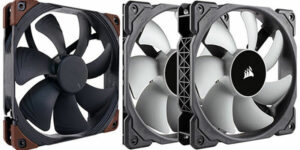
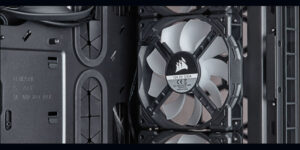
Open your PC case and visually inspect:
- CPU fan
- Case fans
- GPU fans
If a fan isn’t spinning at all, this is a hardware issue—not a SpeedFan problem.
2. Verify CPU Temperature
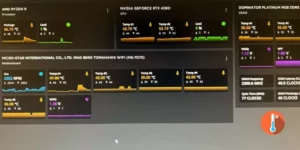
Use Task Manager or another monitoring tool like HWMonitor to check:
- Idle CPU temperature (30–50°C typical)
- Load temperature (60–85°C typical)
If temperatures are normal, your system cooling may be functioning even if SpeedFan isn’t reading it.
How To Fix SpeedFan Not Detecting Fans on Windows 11/10 PC
Now let’s walk through the complete troubleshooting process step-by-step.
Enable Fan Control in BIOS/UEFI
One of the most overlooked causes behind How To Fix SpeedFan Not Detecting Fans on Windows 11/10 PC is BIOS settings.
Steps:
- Restart your PC
- Press DEL, F2, or F10 (depending on motherboard)
- Go to:
- Hardware Monitor
- PC Health Status
- Fan Control
Make sure:
- Fan monitoring is enabled
- Smart Fan Control is activated
- Fans are set to PWM if using 4-pin connectors
If BIOS doesn’t detect fans, SpeedFan won’t either.
Update Chipset and Motherboard Drivers
Windows updates sometimes break low-level sensor access.
Go to:
- Motherboard manufacturer website
- Download latest:
- Chipset drivers
- MEI drivers (Intel systems)
- SMBus controller updates
Outdated chipset drivers are a silent cause of SpeedFan failures.
Run SpeedFan as Administrator
Windows 11 has tighter security compared to Windows 10.
Right-click SpeedFan → Run as Administrator.
If that fixes detection, create a permanent admin shortcut.
This small tweak often resolves issues without deeper changes.
Configure Advanced Fan Settings in SpeedFan
Sometimes SpeedFan detects sensors—but they’re hidden.
Go to:
Configure → Advanced
Select your chip (like IT8728F, Nuvoton, etc.)
Set:
- PWM Mode to “Software controlled”
- Enable automatic fan speed
Then check the “Fans” tab.
This step is critical when figuring out How To Fix SpeedFan Not Detecting Fans on Windows 11/10 PC because incorrect PWM settings block readings.
Check Fan Header Connections
Not all headers are monitored.
Common headers:
- CPU_FAN (monitored)
- SYS_FAN (sometimes monitored)
- CHA_FAN
- PUMP_FAN (may not show in SpeedFan)
If fans are connected via:
- Molex adapters
- SATA power adapters
- Fan hubs without RPM signal
SpeedFan won’t detect RPM.
Reconnect fans directly to motherboard headers if possible.
Update or Replace SpeedFan
Here’s the honest truth: SpeedFan hasn’t been actively updated for years.
Many newer Z690, B660, AM5, or X670 motherboards are not fully supported.
If that’s your situation, How To Fix SpeedFan Not Detecting Fans on Windows 11/10 PC may actually mean switching software.
Windows 11 vs Windows 10 Compatibility Issues
Windows 11 introduced:
- Core isolation
- Memory integrity
- Driver signature enforcement
These security layers block older monitoring tools.
To test:
- Go to Windows Security
- Device Security
- Disable Memory Integrity temporarily
- Restart
If SpeedFan starts working, you’ve identified the conflict.
Re-enable security afterward.
Alternative Fan Monitoring Software
If you’ve tried everything and SpeedFan still fails, here are better modern alternatives:
| Software | Best For | Windows 11 Support |
|---|---|---|
| HWMonitor | Temperature monitoring | Yes |
| Open Hardware Monitor | Free fan readings | Partial |
| Argus Monitor | Advanced fan control | Yes |
| MSI Afterburner | GPU fan control | Yes |
| FanControl (Rem0o) | Modern replacement | Excellent |
FanControl is currently the best modern solution for those stuck researching How To Fix SpeedFan Not Detecting Fans on Windows 11/10 PC.
Real-Life Troubleshooting Scenario
Last year, I helped a friend who built a Ryzen 7 5800X PC. SpeedFan showed zero fans detected. CPU temperature hovered at 75°C under load.
The real issue?
His fans were connected to a powered hub with no RPM feedback cable attached to the motherboard.
Once we connected one PWM cable directly to the SYS_FAN header, SpeedFan instantly detected RPM.
The lesson: Software isn’t always the villain—sometimes wiring is.
Understanding CPU Temperature and Fan Behavior
Let’s clarify something important.
CPU temperature naturally fluctuates:
- Idle: 30–50°C
- Gaming: 60–85°C
- Heavy workloads: 85–95°C
Fans increase RPM based on thermal thresholds defined in BIOS.
If SpeedFan can’t detect fans but temperatures remain stable, your system may still be safe.
However, ignoring detection issues can lead to:
- Thermal throttling
- Reduced lifespan
- Unexpected shutdowns
According to industry studies, sustained CPU temperatures above 90°C can reduce processor lifespan by up to 40% over time.
That’s why resolving How To Fix SpeedFan Not Detecting Fans on Windows 11/10 PC is more than cosmetic—it’s about hardware longevity.
Advanced Fix: Flash BIOS (If Necessary)
If your motherboard is older and recently updated Windows 11, BIOS firmware may need updating.
Only do this if:
- You understand the risks
- You download firmware from official manufacturer
BIOS updates often improve hardware monitoring compatibility.
Frequently Asked Questions
FAQs
Why is SpeedFan not showing any fans?
Usually due to BIOS settings, unsupported motherboard chips, or fans connected via adapters without RPM signals.
Does SpeedFan work on Windows 11?
It can, but compatibility is limited. Many newer systems face detection issues.
Can high CPU temperature damage my PC?
Yes. Sustained high CPU temperature accelerates silicon degradation and can cause shutdowns.
Is SpeedFan outdated?
Yes. It hasn’t received major updates in years, which affects compatibility with modern chipsets.
What is the best alternative to SpeedFan?
FanControl (Rem0o) is currently the most recommended free modern alternative.
Why are my fans spinning but not detected?
They may be powered directly via PSU or connected to a non-monitored header.
Should I disable Windows security to fix SpeedFan?
Only temporarily for testing. Re-enable protection afterward.
Can a faulty motherboard cause detection issues?
Yes. Damaged sensor chips or faulty fan headers can prevent RPM readings.
Conclusion
Fixing fan detection issues can feel intimidating at first. But in reality, most cases of How To Fix SpeedFan Not Detecting Fans on Windows 11/10 PC boil down to BIOS settings, outdated drivers, or compatibility limits.
Start simple. Check wiring. Verify BIOS. Update drivers. Then consider modern software alternatives if needed.
Your CPU temperature isn’t just a number—it’s a direct indicator of your system’s health. And taking the time to fix monitoring issues today can prevent expensive hardware failures tomorrow.
Technology evolves. Sometimes our tools need to evolve with it.