Your graphics card can be quietly working harder than anything else in your PC, and the first clue is usually heat. Knowing a good temperature for gpu use can help you spot trouble before your games stutter, your fans scream, or your system suddenly shuts down.
GPU temperature matters because heat affects performance, noise, stability, and long-term reliability. A graphics card is designed to run warm, especially during gaming, rendering, video editing, or AI workloads. But “warm” and “too hot” are not the same thing.
Most people only start checking temperatures after something feels wrong. Maybe the PC gets louder than usual. Maybe frame rates dip after 20 minutes. Maybe the side panel feels like a space heater. The good news is that GPU heat is usually easy to understand once you know what normal looks like.
![Image placeholder: A gaming PC with airflow arrows showing cool air intake and warm air exhaust around the graphics card.]
This guide explains safe GPU temperature ranges, what affects them, when to worry, and how to bring temperatures down without guessing or overreacting.
What Is a Good Temperature for GPU Use?
A good temperature for gpu use depends on what the graphics card is doing. Idle temperatures are very different from gaming temperatures, and desktop GPUs behave differently from laptop GPUs.
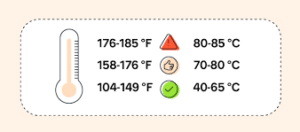
As a general rule, many desktop graphics cards sit around 30°C to 50°C when idle and around 60°C to 85°C during demanding gaming or creative workloads. Some models run cooler, some run hotter, and compact systems usually have less thermal headroom.
That does not mean 86°C instantly destroys your GPU. Modern graphics cards are built with protection systems that reduce clock speed or power when temperatures get too high. Still, constantly running near the thermal limit is not ideal if you want quieter operation and stable performance.
Simple Temperature Guide
Here is a practical way to think about GPU temperatures:
| GPU Situation | Typical Range | What It Usually Means |
|---|---|---|
| Idle desktop use | 30°C–50°C | Normal for most desktops |
| Light browsing or video | 40°C–60°C | Usually normal |
| Gaming load | 60°C–85°C | Normal for many GPUs |
| Heavy rendering or stress test | 70°C–90°C | Can be normal, but watch behavior |
| Above 90°C core temperature | Hot | Check cooling, airflow, and fan behavior |
| Frequent throttling or shutdowns | Problem | Needs attention |
These ranges are not strict laws. Your GPU model, case airflow, room temperature, fan curve, dust buildup, and workload all matter.
Why GPU Temperature Changes So Much
GPU heat is not random. Your graphics card produces heat based on how much power it uses, how hard the chip is working, and how efficiently the cooler removes that heat.
When you are reading email, the GPU may barely work. When you launch a modern game at high settings, the card may push hundreds of watts through a small silicon chip. That energy becomes heat, and the cooler has to move it away fast enough.
The Main Factors That Affect GPU Temperature
Several things can change what counts as a good temperature for gpu performance in your system:
- GPU model and power draw
- Cooler size and heatsink design
- Number and quality of GPU fans
- PC case airflow
- Dust on fans, filters, and heatsinks
- Ambient room temperature
- Game settings and resolution
- Frame rate limits or uncapped FPS
- Laptop thickness and cooling design
- Old thermal paste or aging thermal pads
A high-end GPU in a small case can run hotter than a mid-range GPU in a spacious airflow-focused case. A laptop GPU may also run hotter than a desktop GPU because thin laptops have limited cooling space.
Idle GPU Temperature: What Is Normal?
Idle temperature is the temperature your graphics card reaches when it is not doing much work. This might be while sitting on the desktop, browsing simple websites, writing documents, or streaming low-resolution video.
For most desktop PCs, an idle GPU temperature between 30°C and 50°C is normal. In a hot room or compact case, 50°C to 60°C can still happen, especially if the fans are designed to stop spinning at low temperatures.
Why Some GPUs Idle Hotter
Many modern graphics cards use a zero-RPM fan mode. This means the fans stay off during light use to keep the PC quiet. The card may idle at 45°C or 55°C because the cooler is passively absorbing heat instead of actively blowing air.
This is usually fine. If temperatures drop quickly once the fans start spinning, the cooling system is probably working as intended.
However, an idle GPU sitting near 70°C deserves attention. That may point to poor airflow, dust buildup, a stuck fan, background software using the GPU, or a monitor setup that keeps memory clocks high.
Gaming GPU Temperature: What Is Safe?
Gaming is where GPU temperature really matters. Modern games can push the graphics card hard, especially at 1440p, 4K, high refresh rates, ray tracing, or ultra-quality settings.
For many desktop GPUs, a gaming temperature between 60°C and 85°C is considered normal. If your card stays in the 70s during a demanding game, that is generally a healthy result. If it spends most of its time in the upper 80s, it may still be within spec, but there may be room to improve cooling.
A good temperature for gpu gaming is usually one that stays stable without heavy throttling, excessive fan noise, crashes, or sudden performance drops.
![Image placeholder: Gamer monitoring GPU temperature overlay while playing a modern PC game.]
Is 80°C Bad for a GPU?
No, 80°C is not automatically bad. Many graphics cards are designed to operate around this range under load. The bigger question is whether the temperature is stable and whether the card is maintaining performance.
If your GPU sits at 80°C during a demanding game and runs smoothly, that is usually fine. If it climbs from 80°C to 90°C and then frame rates drop sharply, you may be seeing thermal throttling.
Is 90°C Too Hot for a GPU?
A core temperature around 90°C is hot for many desktop GPUs. Some cards can tolerate it, but it is not a temperature most users should ignore, especially if it happens often.
At that point, check the basics: case airflow, dust, fan speed, cable clutter, room temperature, and whether your game is running with uncapped frame rates. In many cases, small changes can reduce temperature by several degrees.
GPU Hotspot and Junction Temperature Explained
Many monitoring tools show more than one GPU temperature. You may see “GPU temperature,” “hotspot,” “junction,” “memory junction,” or “VRAM temperature.” These readings can confuse people because they do not always match.
GPU Core Temperature
GPU core temperature is the main reading most people watch. It represents the general temperature of the graphics processor. When someone asks about a good temperature for gpu, they usually mean this core temperature.
Hotspot or Junction Temperature
Hotspot temperature is the hottest sensor reading on the GPU die. It is normally higher than the average core temperature. A difference of 10°C to 20°C can be normal, depending on the card.
For example, your core temperature might be 72°C while hotspot is 88°C. That does not automatically mean something is broken. But if hotspot is extremely high while core temperature looks reasonable, the cooler may not be making ideal contact, or thermal paste may be uneven.
Memory Junction Temperature
Some graphics cards also report memory temperature. This matters because VRAM can heat up during gaming, mining, rendering, and AI workloads. High memory temperatures may cause throttling even when the GPU core looks fine.
If your monitoring tool shows multiple readings, do not panic. Compare the numbers, watch trends, and check whether performance remains stable.
Good Temperature for GPU in Laptops
Laptop GPUs usually run hotter than desktop GPUs. This is because laptops have smaller heatsinks, thinner fans, tighter internal space, and less room for airflow.
A gaming laptop GPU commonly runs between 70°C and 87°C under load. Some models may go higher depending on design. Thin performance laptops often prioritize portability, which means higher fan noise and higher temperatures are expected.
A good temperature for gpu use in a laptop is not always as low as a desktop target. Instead, focus on whether the laptop maintains clock speeds, avoids shutdowns, and does not constantly hit its thermal limit.
How to Help a Laptop GPU Run Cooler
Laptop cooling is more limited, but you still have options:
- Use the laptop on a hard, flat surface.
- Avoid beds, blankets, and soft surfaces.
- Clean dust from vents carefully.
- Use the manufacturer’s performance or balanced mode.
- Limit FPS in games when you do not need maximum frames.
- Raise the rear of the laptop slightly for airflow.
- Consider a cooling pad for long gaming sessions.
Even lifting the back edge of a laptop can improve air intake on some models.
When GPU Temperature Becomes a Problem
A hot GPU is not always an overheating GPU. The real problem is heat that causes instability, performance loss, or safety protection behavior.
Your GPU may be too hot if you notice:
- Sudden frame rate drops after several minutes
- Fans running at maximum constantly
- Game crashes during heavy scenes
- Black screens or driver resets
- PC shutdowns under load
- Clock speeds dropping sharply
- Temperature rapidly climbing above normal
- Burning smell or unusual fan noise
Do not ignore shutdowns or repeated black screens. Those symptoms can involve GPU heat, but they can also point to power supply issues, driver problems, unstable overclocks, or failing hardware.
Thermal Throttling: What It Means
Thermal throttling happens when the GPU reduces performance to control temperature. This is a built-in safety behavior. Instead of letting the chip keep getting hotter, the card lowers clock speed, voltage, or power draw.
You may notice thermal throttling as stutter, lower FPS, inconsistent frame pacing, or benchmark scores that start strong and then fall.
How to Spot Thermal Throttling
Use a monitoring tool while running a game or benchmark. Watch temperature, clock speed, power usage, and fan speed. If temperature hits a high level and clock speed drops at the same time, heat may be limiting performance.
Thermal throttling is not always dangerous, but it is a sign that the cooling system is at its limit. A good temperature for gpu performance leaves enough thermal headroom so the card can boost properly without constantly pulling back.
How to Check Your GPU Temperature
Checking GPU temperature is simple. Many systems already include monitoring features, and third-party tools can provide more detail.
Common Ways to Monitor Temperature
You can check GPU temperature through:
- Windows Task Manager
- NVIDIA App or GeForce Experience
- AMD Software: Adrenalin Edition
- Intel Graphics Software
- MSI Afterburner
- GPU-Z
- HWiNFO
- Manufacturer tools from ASUS, MSI, Gigabyte, Zotac, Sapphire, and others
For quick checks, Task Manager is enough. For deeper troubleshooting, tools like HWiNFO, GPU-Z, or MSI Afterburner show more sensors and behavior over time.
What to Watch While Testing
Do not only look at one number for five seconds. Watch how temperature behaves over 10 to 20 minutes. A card that briefly spikes to 84°C and settles at 78°C is different from a card that slowly climbs until it throttles.
Pay attention to:
- Starting idle temperature
- Load temperature after 10 minutes
- Maximum hotspot temperature
- Fan speed percentage
- Clock speed stability
- Power draw
- Room temperature
- Noise level
Temperature is part of the story, not the whole story.
Best Ways to Lower GPU Temperature
If your GPU runs hotter than you like, start with simple fixes before doing anything complicated.
Improve Case Airflow
Case airflow has a huge effect on GPU temperature. A graphics card cannot cool itself well if it keeps breathing hot air.
A typical airflow setup uses front or bottom intake fans and rear or top exhaust fans. The goal is to bring cool air in and push warm air out without trapping heat around the graphics card.
Make sure intake fans are not blocked by a solid front panel, dust filter, wall, carpet, or desk enclosure.
Clean Dust Carefully
Dust acts like insulation. It clogs heatsink fins, blocks filters, and makes fans work harder.
Turn off the PC, unplug it, and clean dust from filters, fans, and vents. Use short bursts of compressed air and stop fans from spinning wildly while cleaning. For laptops, be gentle around vents and avoid forcing debris deeper inside.
Adjust the Fan Curve
A fan curve controls how fast GPU fans spin at different temperatures. Many cards prioritize quiet operation, which can allow higher temperatures.
A slightly more aggressive fan curve can reduce heat without replacing hardware. The tradeoff is noise. Try small changes first rather than pushing fans to 100% all the time.
Limit Frame Rate
Uncapped FPS can make a GPU work harder than necessary. If your monitor is 144Hz, letting a game render 250 FPS may add heat and noise without much benefit.
Use in-game frame caps, driver settings, or V-Sync/G-Sync/FreeSync options. Limiting FPS is one of the easiest ways to reduce power draw and temperature.
Lower Power Limit or Undervolt
Undervolting means running the GPU at a lower voltage while keeping similar performance. A good undervolt can reduce temperature, noise, and power use.
Lowering the power limit can also help. This may slightly reduce maximum performance, but many GPUs lose only a small amount of FPS while becoming much cooler and quieter.
Replace Thermal Paste or Pads
Older GPUs may benefit from fresh thermal paste. Over time, paste can dry out or pump out from repeated heating and cooling cycles.
Thermal pad replacement is more delicate because pad thickness matters. If you are not comfortable disassembling a graphics card, it may be better to ask a technician or leave this step alone.
![Image placeholder: Infographic showing six cooling fixes: clean dust, improve airflow, set fan curve, cap FPS, undervolt, replace thermal paste.]
Room Temperature Matters More Than People Think
Your PC cooling system starts with the air around it. If your room is 30°C, your GPU will usually run hotter than it would in a 20°C room.
This is why the same PC may feel fine in winter and loud in summer. The cooler cannot magically cool below the temperature of the air it receives.
If your room is hot, a good temperature for gpu load may be several degrees higher than online examples from people in cooler climates. Always compare your results with your environment in mind.
Desktop Case Placement Can Raise Temperatures
Where you place your PC affects cooling. A powerful system inside a closed desk cabinet can recycle hot air, causing GPU temperatures to rise quickly.
Avoid placing the case:
- Directly against a wall
- Inside a sealed desk compartment
- On thick carpet if bottom intake exists
- Near a heater or sunny window
- In a cramped corner with poor exhaust space
Give the case room to breathe. Sometimes moving the tower a few inches away from the wall can help exhaust heat more effectively.
Should You Worry About GPU Lifespan?
Heat can affect electronics over time, but modern GPUs are designed to protect themselves. Occasional high temperatures during heavy gaming are not the same as abuse.
The bigger concern is constant operation near the thermal limit, especially with high fan speeds, dust buildup, and poor airflow. That combination can make the card louder, reduce boost performance, and place more stress on fans and thermal materials.
A good temperature for gpu health is one your card can maintain comfortably without constant throttling. For many users, keeping gaming temperatures below the mid-80s is a practical goal.
Good Temperature for GPU by Usage Type
Different tasks create different heat levels. A quiet desktop reading is not comparable to a 4K ray-traced gaming session.
Everyday Use
For browsing, streaming, office work, and light media, 30°C to 60°C is usually normal. Higher temperatures may happen if multiple high-refresh monitors keep the GPU memory active.
Competitive Gaming
Esports games often run at high frame rates, which can heat the GPU even if graphics settings are not extreme. Capping FPS close to your monitor refresh rate can help reduce unnecessary heat.
AAA Gaming
Modern AAA games can push GPU usage close to 100%. Temperatures between 70°C and 85°C are common for many cards, especially at high settings.
Rendering and Creative Work
Rendering, 3D modeling, video export, and compute workloads can keep the GPU loaded for long periods. In these cases, stable temperature matters more than short spikes.
Stress Testing
Stress tests are designed to create worst-case heat. They may push temperatures higher than normal games. Use them carefully and stop the test if temperatures climb unusually fast.
Mistakes That Make GPU Heat Worse
Many GPU temperature problems come from small setup mistakes rather than faulty hardware.
Common mistakes include:
- Running games with unlimited FPS
- Ignoring dust filters for months
- Placing the PC in a closed cabinet
- Using too few case fans
- Installing fans in conflicting directions
- Blocking GPU intake with cables
- Using silent fan profiles during heavy gaming
- Overclocking without checking temperatures
- Forgetting that summer room temps change everything
Fixing just one or two of these can make a noticeable difference.
FAQ
What is a good temperature for gpu while gaming?
A good temperature for gpu gaming is usually around 60°C to 85°C for many desktop graphics cards. Lower is nice, but stable performance and no throttling matter most.
Is 75°C safe for a GPU?
Yes, 75°C is generally safe for most GPUs under load. If your card runs steadily around 75°C while gaming, that is usually a healthy temperature.
Is 85°C too hot for a GPU?
85°C is warm but often still within normal operating behavior for many graphics cards. If your GPU frequently goes above 85°C, check airflow, dust, fan curves, and room temperature.
Why is my GPU hot when idle?
Your GPU may idle hot because of zero-RPM fan mode, high-refresh monitors, background apps using hardware acceleration, dust, or poor case airflow. Check GPU usage and fan behavior first.
What GPU temperature is dangerous?
Danger depends on the specific GPU model, but core temperatures above 90°C often deserve attention. Frequent throttling, crashes, or shutdowns are stronger warning signs than one brief spike.
Does high GPU temperature lower FPS?
Yes, it can. If the GPU gets too hot, it may throttle by reducing clock speed or power. That can lower FPS and cause inconsistent performance.
Should I set GPU fans to 100%?
Not usually. Running fans at 100% can be loud and may add wear over time. A balanced fan curve is better for daily use unless you are temporarily testing cooling.
Can dust really increase GPU temperature?
Yes. Dust blocks airflow and reduces heatsink efficiency. Cleaning filters, fans, and vents can lower temperatures and reduce fan noise.
Is undervolting safe for a GPU?
Undervolting is generally safe when done carefully because it reduces voltage rather than increasing it. The main risk is instability if the voltage is set too low, so test gradually.
What is a good temperature for gpu in a laptop?
A good temperature for gpu in a gaming laptop is often higher than in a desktop, commonly around 70°C to 87°C under load. Thin laptops may run warmer because cooling space is limited.
Conclusion
A good temperature for gpu use is not one perfect number. It changes with your graphics card, case, laptop design, room temperature, workload, and fan settings. For most desktop users, 30°C to 50°C at idle and 60°C to 85°C while gaming are practical ranges to remember.
The main thing is behavior. If your GPU is stable, not constantly throttling, and not crashing under load, it is probably doing fine. If temperatures climb into the 90s often, fans sound strained, or performance drops after a few minutes, it is time to improve cooling.
Start simple: clean dust, improve airflow, cap unnecessary FPS, and check your fan curve. Most heat problems do not require a new graphics card. They just need a cooler path for hot air to leave the system.