Few things are more frustrating than pressing your PC’s power button and being greeted by a loud beep and a cryptic warning instead of your desktop. If you’re staring at a message about a fan problem, you’re probably wondering how serious it is. In this guide, we’ll walk step-by-step through <strong>How To Fix CPU Fan Error on Boot BIOS (Asus, Megatrends)</strong> and get your system running smoothly again.
This issue isn’t just an annoying pop-up. A CPU fan error is your motherboard’s way of protecting your processor from overheating. Modern CPUs can reach temperatures above 90°C under load. Without proper cooling, permanent damage can happen in minutes.
The good news? In most cases, the fix is simple. Whether it’s a loose cable, incorrect BIOS configuration, or faulty fan header, you can resolve it without being a hardware engineer. Let’s break it down in plain, practical terms.
What Does CPU Fan Error on Boot Mean?
When you power on your computer and see a “CPU Fan Error” message, your BIOS (Basic Input/Output System) is detecting a problem with the CPU fan speed or connection.
Why the BIOS Stops the Boot Process
The motherboard constantly monitors RPM (revolutions per minute) from the CPU fan header. If it detects:
- No RPM signal
- RPM below a safe threshold
- Incorrect fan header usage
It halts the system to prevent thermal damage.
Asus and American Megatrends BIOS firmware are particularly strict about this. That’s a good thing. It’s essentially your system saying, “I won’t risk frying your processor.”
Common Causes of CPU Fan Error in Asus and Megatrends BIOS
Understanding the root cause is half the battle.
1. Fan Connected to the Wrong Header
Many motherboards have multiple fan headers:
- CPU_FAN
- CPU_OPT
- CHA_FAN (Chassis fan)
If your cooler is connected to CHA_FAN instead of CPU_FAN, BIOS may not detect it.
2. Low Fan Speed (Especially with Liquid Coolers)
Some AIO liquid coolers run at lower RPM. If BIOS minimum threshold is set too high, it triggers the warning.
3. Loose or Damaged Cable
A partially connected 4-pin PWM cable can stop RPM reporting.
4. Dust and Debris
Dust buildup can physically block the fan blades. Over time, that reduces airflow and RPM.
5. BIOS Misconfiguration
Fan monitoring may be enabled incorrectly. Sometimes simply resetting BIOS fixes everything.
If you’re researching <strong>How To Fix CPU Fan Error on Boot BIOS (Asus, Megatrends)</strong>, these causes account for nearly 80% of cases in consumer PCs.
How To Fix CPU Fan Error on Boot BIOS (Asus, Megatrends) Step-by-Step
Now let’s get practical.
Step 1: Power Off and Inspect Hardware
Completely shut down your system and unplug it.
Check:
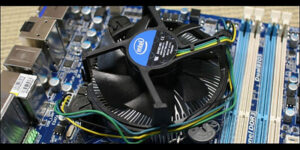
- CPU fan cable firmly seated in CPU_FAN header
- No bent motherboard pins
- No broken fan blades
This physical check solves many issues immediately.
Step 2: Enter BIOS Settings
Restart and press:
- DEL (Asus)
- F2 (Megatrends BIOS)
Navigate to “Hardware Monitor” or “Monitor” tab.
Step 3: Check CPU Fan Speed
Look at:
- CPU Fan RPM
- CPU Temperature
Normal idle CPU temperature ranges between 30°C–50°C. If temperature is climbing quickly, your cooling system is failing.
Step 4: Adjust Fan Speed Monitoring
If you’re using liquid cooling:
- Set CPU Fan Speed Low Limit to 200 RPM
- Or set to “Ignore” (only if you’re sure cooling works)
This is a common fix in <strong>How To Fix CPU Fan Error on Boot BIOS (Asus, Megatrends)</strong> guides.
Step 5: Enable Q-Fan Control (Asus Specific)
In Asus BIOS:
Advanced Mode → Monitor → Q-Fan Configuration
Set fan control to PWM if using a 4-pin fan.
Step 6: Reset BIOS to Default
Sometimes corrupted settings trigger false alarms.
- Load Optimized Defaults
- Save and Exit
Many users report instant success with this step.
Adjusting BIOS Settings Safely
BIOS can feel intimidating. However, changing fan monitoring is safe if done carefully.
Here’s a quick table for safe BIOS changes:
| Setting | Safe Adjustment | Risk Level |
|---|---|---|
| CPU Fan Speed Low Limit | 200–300 RPM | Low |
| CPU Q-Fan Control | Enabled | Low |
| Monitor CPU Fan | Ignore (only if pump used) | Medium |
| CPU Voltage | Do NOT change | High |
Avoid voltage tweaks unless you truly understand overclocking.
CPU Temperature and Thermal Protection Explained
Your CPU generates heat measured in watts (TDP). A typical mid-range processor produces 65W–125W of heat. Without proper airflow:
- Thermal throttling begins around 90°C
- Emergency shutdown near 100°C
Modern Intel and AMD processors include thermal protection. Still, relying on shutdown is risky.
Signs of Overheating
- Random shutdowns
- Loud fan noise
- Blue Screen errors
- Reduced performance
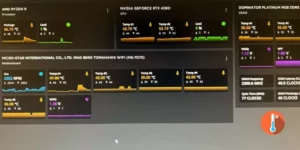
Monitoring tools like HWMonitor or Core Temp help track real-time CPU temperature.
If you’re serious about preventing future errors while learning How To Fix CPU Fan Error on Boot BIOS (Asus, Megatrends), regular temperature checks are essential.
When to Replace the CPU Fan
Sometimes troubleshooting isn’t enough.
Replace the fan if:
- RPM reads zero consistently
- Grinding or clicking noise present
- Fan stops intermittently
A quality air cooler costs between $25–$60. AIO liquid coolers range $80–$150.
Investing in reliable cooling protects a processor that may cost $300 or more.
Troubleshooting Advanced Scenarios
Using Liquid Cooling with Pump Header
Connect pump to AIO_PUMP header if available. Set CPU fan header to monitor a dummy fan or adjust BIOS accordingly.
After BIOS Update
Sometimes a firmware update resets monitoring thresholds. Recheck settings.
Overclocked Systems
Overclocking increases CPU temperature significantly. Ensure cooling solution matches performance demands.
For gamers and content creators, solving How To Fix CPU Fan Error on Boot BIOS (Asus, Megatrends) is critical for system stability during high workloads.
Frequently Asked Questions
Why does my Asus motherboard say CPU Fan Error?
Usually because the BIOS cannot detect proper RPM from the CPU_FAN header.
Is it safe to ignore CPU Fan Error in BIOS?
Only if you’re certain your cooling system works and temperatures remain safe.
Can a dusty fan cause this error?
Yes. Dust can block airflow and reduce RPM below BIOS threshold.
Does updating BIOS fix CPU fan errors?
Sometimes. Updates can resolve monitoring bugs.
What is normal CPU temperature at idle?
Between 30°C and 50°C for most systems.
Can thermal paste cause CPU fan error?
Indirectly. Poor paste application increases heat, forcing fan irregularities.
How often should I clean my CPU fan?
Every 3–6 months depending on environment.
Do liquid coolers trigger more CPU fan errors?
They can if RPM thresholds aren’t adjusted properly.
Conclusion
Dealing with a boot warning can feel alarming, especially when it mentions your processor. But in reality, most cases of <strong>How To Fix CPU Fan Error on Boot BIOS (Asus, Megatrends)</strong> come down to simple wiring issues or BIOS settings.
Take your time, inspect connections carefully, monitor CPU temperature consistently, and avoid unnecessary BIOS tweaks. Your motherboard is designed to protect your system. Once configured correctly, that frustrating error message will disappear—and your PC will boot quietly and confidently every time.